History: your days at a glance
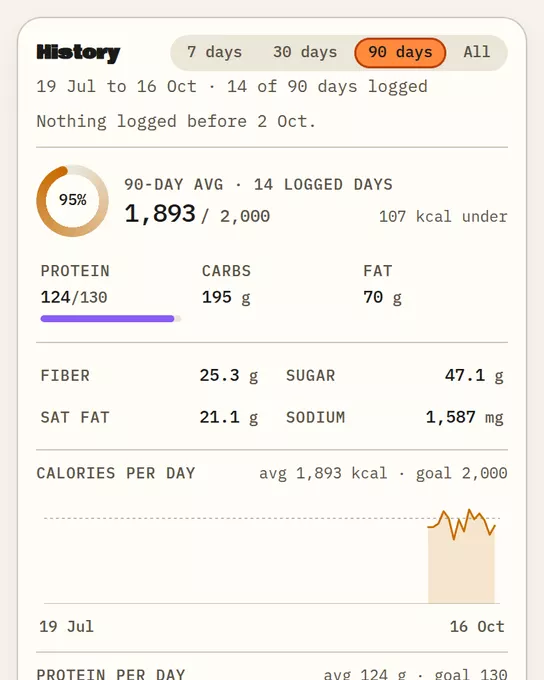
History shows your logged days as charts and a table. Pick a period at the top: 7 days, 30 days, 90 days or All. It opens on 7 days.
Steps
- Open History in the app.
- Choose a period.
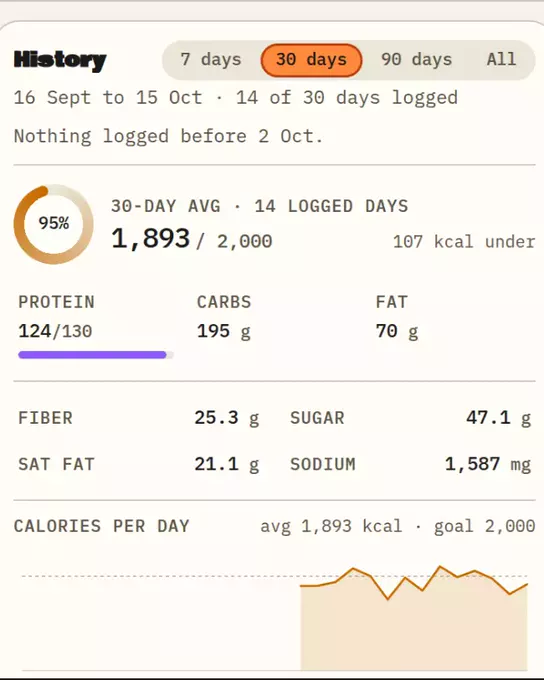
Sample data History for 30 days: averages over the days you logged, then the charts. - Read the charts for calories and the other nutrients. The line under the title says how many days in the period you logged.
- Open a day in the table to go to its Today page.
A day with nothing logged is not the same as a day with zero. Empty days stay blank.
Long periods
When All covers more than 120 days, the charts group days by week. A week bar shows the average over the days you logged in that week.
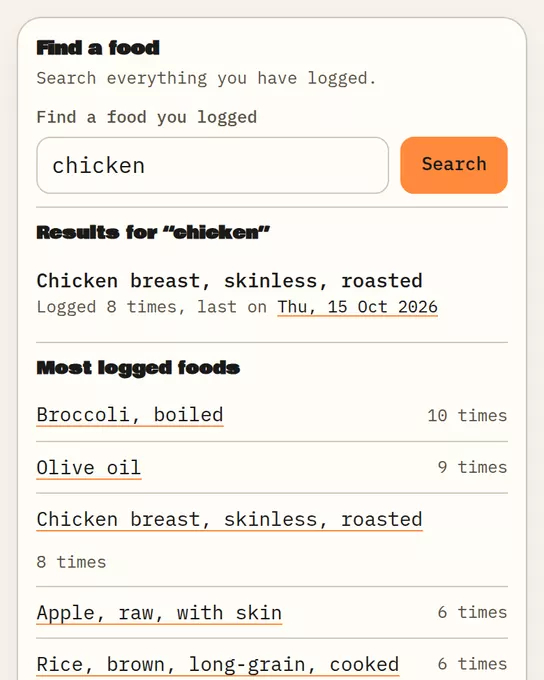
Find a food you logged
Use Find a food you logged at the bottom of the page. Type a word such as "rice" and choose Search. Results come from your own log.
Ask Claude instead
- "What did I eat last week?" returns your meals by day, up to 31 days at a time.
- "How did my week look?" returns the days logged, the average per logged day, your five most logged foods and how many days landed near your calorie goal. A summary covers up to 92 days.
No meals yet
An empty History says your history starts with your first meal and links to the steps.
Good to know
- Units: calories in kcal, other nutrients in grams, sodium in mg.
- Numbers come from your AI and are estimates.
Start your own record
Create a free account with your email, then add Remembite to Claude. Want to look first? Watch Claude log a sample day, no account needed.