Connect Remembite to Claude
You add Remembite to Claude once, as a custom connector. After that, you log meals by talking to Claude. For ChatGPT (beta), see Connect Remembite to ChatGPT.
Steps
- In Claude, open Customize > Connectors, choose + Add, then Add custom connector.
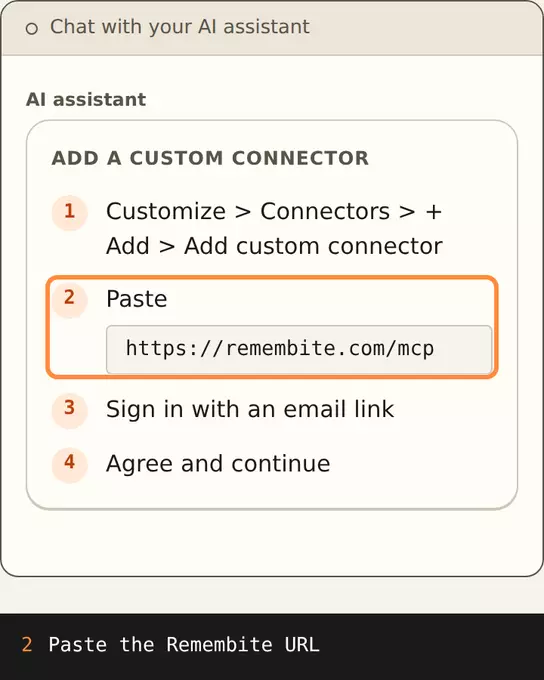
Illustration, sample data Steps 1 and 2: open Connectors, add a custom connector and paste https://remembite.com/mcp. - Enter a name (for example Remembite) and the connector URL
https://remembite.com/mcp, then choose Continue. - Sign in with your email. Remembite sends a one-time link that expires in 10 minutes. Claude asks for read and write access in this one step, so you connect once.
- Read the health data consent, tick both boxes and choose Agree and continue. Decline cancels. Without consent Remembite cannot store your meals.
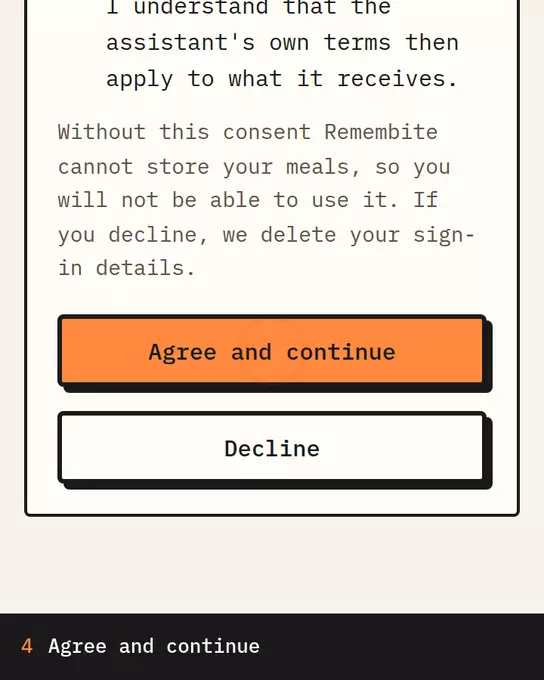
Sample data The Remembite consent screen: read it, tick both boxes, then choose Agree and continue. - In a normal chat, tell Claude what you ate. See Log a meal.
On later connections you only see Allow or Deny.
Team and Enterprise plans
An organization Owner (or an admin with the right role) adds the connector first under Organization settings > Connectors. You then press Connect. Claude's screens can change, so check Claude's help if a label differs.
ChatGPT
Remembite works in ChatGPT (beta, via developer mode). Sign in with the email link or the 6-digit code and agree to the same consent. Steps: Connect Remembite to ChatGPT.
Check that it works
Open the app. The Get started screen updates by itself and shows "Claude is connected" once the connection is made.
If something goes wrong, see Claude asks to connect again or Connector shows no tools.
Start your own record
Create a free account with your email, then add Remembite to Claude. Want to look first? Watch Claude log a sample day, no account needed.