The Remembite connector shows no tools
When the connector works, Claude can use 23 Remembite tools. If it says it cannot save or read meals, go through these checks in order.
Checks
- The connector exists. In Claude, open Customize > Connectors. Remembite should be listed. If not, add it.
- The URL is exact. It must be
https://remembite.com/mcp, with no spaces or extra characters. - It is connected. On Team and Enterprise plans an organization Owner adds the connector first, and you then press Connect.
- You finished sign-in. The email link works once and expires in 10 minutes. Request a new link if needed: Sign-in email problems.
- Consent is on. Without consent Remembite cannot store your meals. See Give consent again.
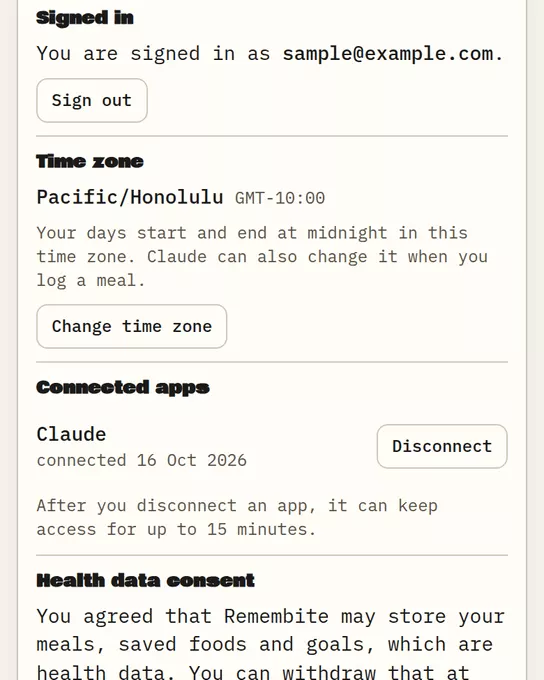
- You did not disconnect it. Check Connected apps on the Account page.
- The connector is on for this chat. In the chat, choose + at the lower left, then Connectors, and switch Remembite on.
Check from Remembite's side
Open the app. The Get started screen shows "Claude is connected" once a connection exists, and Connected apps lists it.
The tools
See the full list with an example for each on the tools page.
Rate limits
If Claude says Remembite had too many requests, wait a minute and try again.
Still stuck
Write to hello@remembite.com. Say which AI app you use and what Claude replied.
Start your own record
Create a free account with your email, then add Remembite to Claude. Want to look first? Watch Claude log a sample day, no account needed.